Website setup gets confusing because people use several technical words as if they are obvious: domain, hosting, DNS, A record, SSL, HTTPS, registrar, nameserver, root domain, and subdomain.
You do not need to become a developer to connect a website. You just need to know what each piece does.
This guide explains the pieces in plain language.
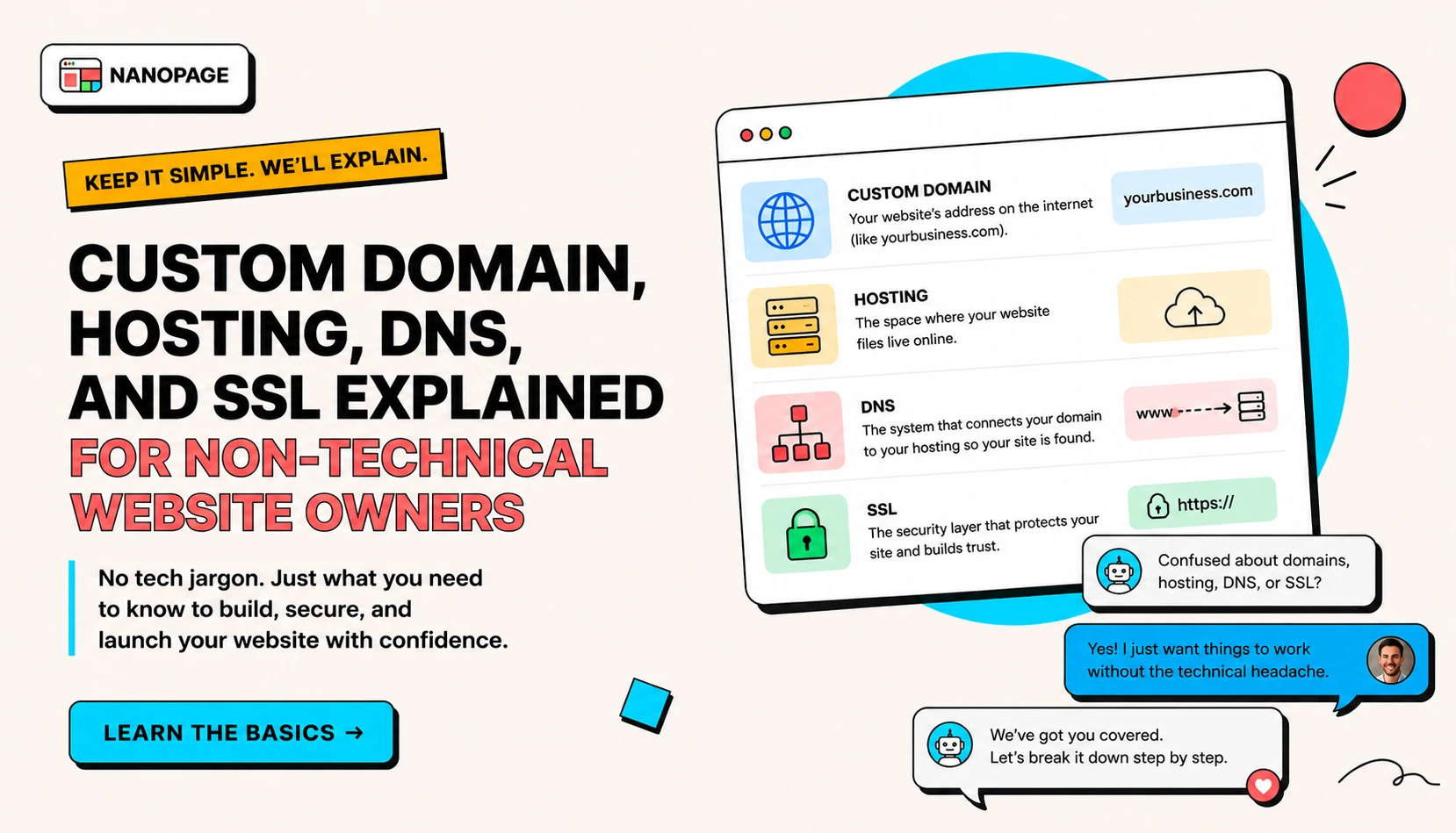
The short version
A domain is the address.
Hosting is the place where the website lives.
DNS is the instruction that points the address to the right place.
SSL is the certificate that makes the site load securely with https://.
That is the whole system.
Domain name
A domain name is the address people type into their browser.
Examples:
yourbusiness.commarisolcafe.comcaseyandjordan.weddingclara-voss-homes.com
You rent a domain from a registrar, usually one year at a time. Buying a domain does not automatically give you a website. It only gives you the address.
Think of it like buying a sign with your street address on it. You still need a building at that address.
Registrar
A registrar is the company where you buy and manage the domain.
Examples include Cloudflare Registrar, Porkbun, Namecheap, GoDaddy, and Squarespace Domains.
The registrar dashboard is where you usually:
- Renew the domain.
- Turn on WHOIS privacy.
- Manage DNS records.
- Change nameservers.
- Point the domain at your website.
Keep access to this account. If you lose registrar access, connecting or renewing the domain becomes painful.
Hosting
Hosting is where the actual website files live.
If the domain is the address, hosting is the building.
Some website products include hosting. Some agencies host the site for you. Some developers ask you to create a hosting account. Some site builders bundle it into a monthly or yearly plan.
Nanopage includes hosting for generated websites. You can use the default Nanopage URL or connect your own custom domain.
DNS
DNS stands for Domain Name System. The plain-English version: DNS tells browsers where to send people when they type your domain.
If someone visits yourbusiness.com, DNS answers the question:
"Which server should handle this?"
DNS is usually edited in your registrar dashboard or wherever your nameservers are managed.
DNS record
A DNS record is one instruction inside DNS.
Common record types:
- A record: points a domain to an IP address.
- CNAME record: points one name to another name.
- TXT record: stores verification text.
- MX record: controls email delivery.
For many custom domain setups, the important one is the A record.
A record
An A record points a domain to an IP address.
It usually has these fields:
- Type: A
- Name:
@orwww - Value: an IP address
- TTL: automatic or default
The @ symbol usually means the root domain, like yourbusiness.com.
www means the subdomain www.yourbusiness.com.
When Nanopage shows you an IP address for a custom domain, you add it as an A record in your DNS settings.
Root domain vs www
The root domain is the bare address:
yourbusiness.com
The www version is a subdomain:
www.yourbusiness.com
Most small businesses want both to work. One can redirect to the other, or both can point to the same site depending on the platform.
If you are unsure, start with the root domain. Then add www if your platform asks for it.
Subdomain
A subdomain is anything before the main domain.
Examples:
www.yourbusiness.commenu.yourbusiness.comevents.yourbusiness.comportfolio.yourbusiness.com
Subdomains can point to different tools. For example, your main site can live at yourbusiness.com, while a booking system lives at book.yourbusiness.com.
Most first websites do not need subdomains.
SSL and HTTPS
SSL is the certificate that makes your website load securely.
HTTPS is what visitors see in the browser:
https://yourbusiness.com
Without HTTPS, browsers may show a warning or mark the site as not secure.
You should not need to buy a separate SSL certificate for a simple modern website. Most website platforms, including Nanopage, handle SSL automatically once the domain points correctly.
Nameservers
Nameservers tell the internet which DNS system controls your domain.
Most people do not need to change nameservers. You can usually manage DNS wherever you bought the domain.
You might change nameservers if:
- You want to manage DNS through Cloudflare.
- Your registrar's DNS tools are limited.
- A platform asks you to move DNS management.
If your website only needs one A record, do not overcomplicate this.
How the pieces fit together
Here is the path:
- You buy a domain from a registrar.
- Your website is hosted somewhere.
- The website platform gives you DNS instructions.
- You add the DNS record at your registrar.
- DNS starts pointing the domain at the hosting platform.
- SSL activates.
- Visitors can open the site securely.
That is all custom domain setup really is.
Common mistakes
Adding the wrong record type
If the platform asks for an A record, add an A record. A TXT or CNAME record will not do the same job.
Typing the full domain into the Name field
Many registrars expect @ for the root domain, not yourbusiness.com.
If the instruction says:
Name: @
Use @.
Editing email records by accident
MX records control email. Do not delete or change them unless you know you are changing email setup.
Expecting instant global updates
DNS often updates quickly, but it can take time. Some networks may see the old value for a while.
Buying extras you do not need
At domain checkout, you may see offers for website builders, email, privacy, SSL, premium DNS, and security bundles.
For a basic website, you usually need:
- The domain.
- WHOIS privacy, preferably free.
- Auto-renew turned on.
You usually do not need paid SSL if your website platform provides it.
What to do before connecting a domain
Before you edit DNS, gather:
- The domain registrar login.
- The exact domain you want to connect.
- The DNS instructions from your website platform.
- Whether you are connecting root,
www, or both. - Any existing email setup you must avoid breaking.
Then follow the platform instructions slowly.
If you are using Nanopage, the detailed walkthrough is here: how to get a domain and connect it to Nanopage. The same steps apply whether the site behind the domain is a restaurant page, a portfolio, a wedding site, or a one-page business brochure site.
The short version
You do not need to memorize DNS. You only need the model:
- Domain: address.
- Registrar: where the address is managed.
- Hosting: where the website lives.
- DNS: directions from address to website.
- A record: common direction used for custom domains.
- SSL: secure padlock.
Once those pieces click, connecting a custom domain becomes much less intimidating.