Every Nanopage site comes with web analytics by default.
You do not need to create a Google Analytics account. You do not need to paste a tracking snippet into the page. You do not need a second subscription just to answer the basic question most small website owners have:
Is anyone looking at this site?
Nanopage analytics is intentionally simple. It shows the numbers a small website actually needs, without turning the dashboard into a marketing operations tool.
What Nanopage analytics shows
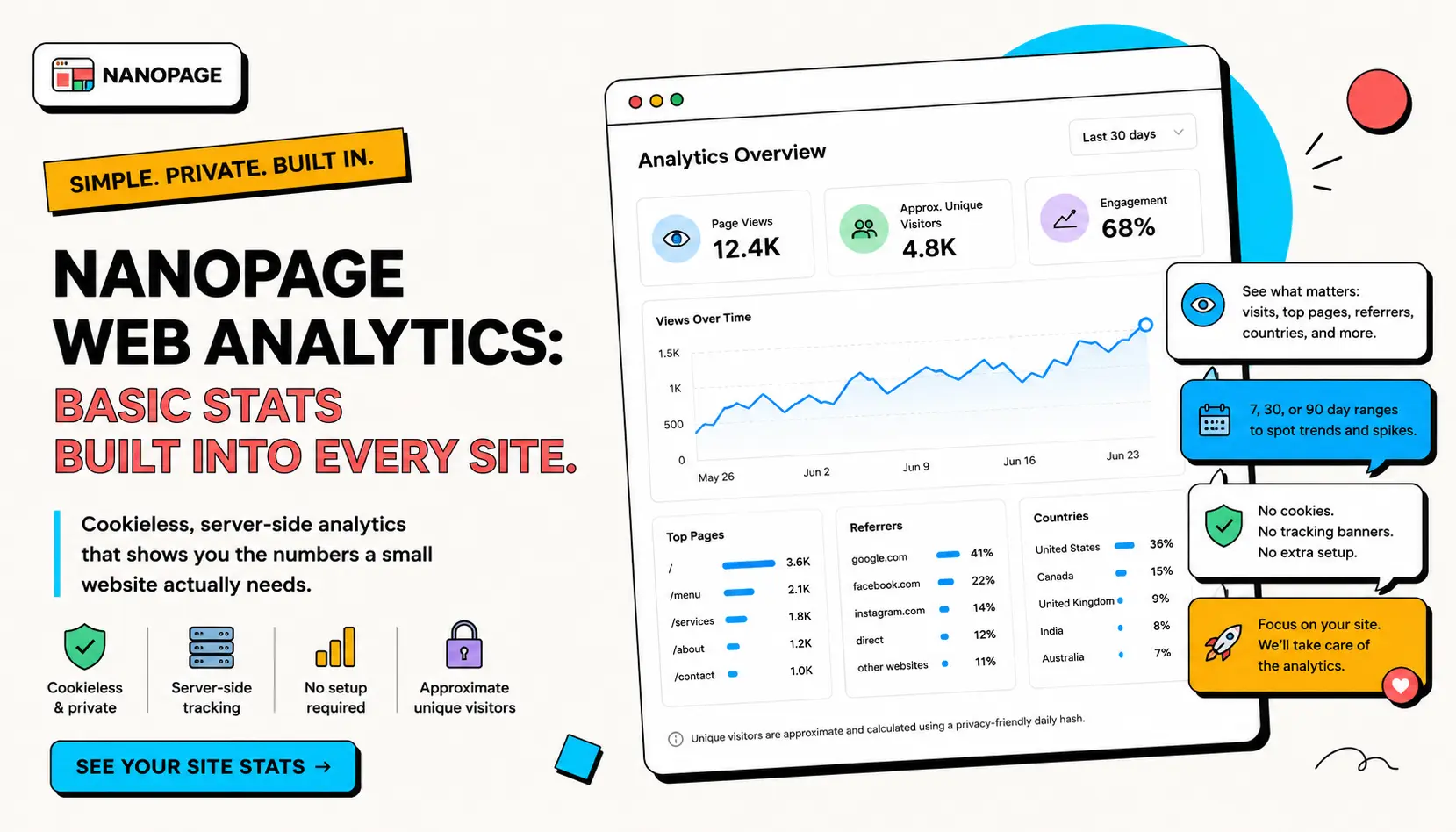
Open the Analytics tab for any site in your dashboard and you can see:
- Page views.
- Approximate unique visitors.
- Views over time.
- Top pages.
- Referrers.
- Countries.
- 7, 30, and 90 day ranges.
That covers the practical first layer of website analytics.
For a small business, event page, resume site, portfolio, restaurant menu, property listing, PDF page, or local service website, these numbers usually answer the most important questions:
- Did people visit?
- Did traffic increase after I shared the link?
- Which page or section is getting attention?
- Are visitors coming from search, social, another website, or direct links?
- Are people finding the site from the countries or markets I expect?
You can make useful decisions from that.
Why basic analytics is enough for most small sites
Most small websites do not need enterprise analytics on day one.
They need enough signal to know whether the page is doing its job.
A bakery does not need a twenty-step funnel report to see whether people opened the menu page. A wedding site does not need ad attribution to see whether guests opened the RSVP page. A contractor does not need a full analytics implementation to see whether a quote page got traffic after a yard sign, Facebook post, or Google Business Profile update.
The first questions are simpler:
- Is the site getting visits?
- Which links or pages matter most?
- Did a new share, flyer, QR code, or email send traffic?
- Is the site worth improving further?
Nanopage analytics is built for that level of clarity.
No setup required
Traditional analytics setup often starts with extra chores:
- Pick an analytics provider.
- Create an account.
- Add a property.
- Copy a script.
- Paste the script into the website.
- Publish.
- Check whether the provider is receiving data.
- Decide whether you need a cookie banner or privacy policy update.
Nanopage skips that for the built-in basics.
When your site is published, page views can be recorded server-side. You can open the Analytics tab from the site dashboard and view traffic without changing the generated page or adding a client-side tracking script.
That matters because many Nanopage sites are made for practical, time-sensitive jobs: launching a service page, publishing a resume, sharing a menu, posting event details, sending a PDF link, or getting a custom domain live quickly.
Analytics should not become the project.
Cookieless and server-side
Nanopage analytics is cookieless. It does not add a browser cookie or a visible tracking banner to your generated site.
It is also server-side. The page view is counted when Nanopage serves the page, instead of relying on a separate JavaScript tracker inside the page.
That keeps the feature lightweight and avoids changing the visible site.
There is one important detail: unique visitors are approximate. Nanopage estimates unique visitors with a privacy-friendly daily hash based on request information such as IP address and browser user agent. The hash changes by day, so it is useful for rough visitor counts, not for identifying people or following individual visitors over time.
For a small website, that is the right tradeoff. You get a useful read on traffic without building a surveillance dashboard.
What the numbers mean
Page views are the total number of page loads recorded in the selected range.
Approximate unique visitors are an estimate of how many distinct visitors came during that period. Treat this as directional, not exact.
Top pages show which paths received the most views. This is especially useful for multi-page sites, PDF download pages, menu pages, or sites with separate sections.
Referrers show the websites that sent visitors to you, when that information is available. For example, traffic may come from Google, Facebook, Instagram, another website, or a booking platform. Some visits will appear as direct traffic because browsers, apps, and privacy settings do not always pass referrer information.
Countries show the countries associated with visits. This helps confirm whether traffic is coming from the market you expected.
The date range controls whether you are looking at the last 7, 30, or 90 days.
How small website owners should use it
Do not stare at analytics every hour. Use it to make decisions.
A simple weekly check is usually enough:
- Look at total visits.
- Check whether the top page matches the main job of the site.
- Check referrers to see where traffic is coming from.
- Look for spikes after sharing the link, printing a QR code, sending an email, or updating a profile.
- Improve the page if visitors are arriving but not taking the next step.
Examples:
- If a restaurant menu page gets visits but people still call for hours, make the hours more visible.
- If a service page gets traffic from search, add clearer prices, service area, photos, and FAQs.
- If a resume site gets views after applications go out, make the portfolio links easier to scan.
- If a property page gets visits but no showing requests, improve the call to action and add missing details.
- If a PDF page gets traffic from a QR code, make the download button and contact option easier to find.
The point is not to collect data. The point is to notice what should be improved next.
What Nanopage analytics does not try to be
Nanopage analytics is not a replacement for a full marketing analytics suite.
It does not try to cover:
- Ad conversion attribution.
- Multi-step funnels.
- Per-person visitor tracking.
- Session recordings.
- Heatmaps.
- A/B testing.
- Detailed campaign reporting.
- Ecommerce revenue analytics.
- CRM attribution.
That is intentional.
If you run paid ads, need event tracking, want conversion funnels, or already have a marketing stack, you may still want Google Analytics, Plausible, Fathom, Umami, Matomo, or another provider.
Nanopage can still support that. Copy the provider's tracking snippet and ask the Nanopage editing chat to add it to your site. The built-in analytics gives you the basics; an external provider can add more advanced measurement when you actually need it.
For the setup flow, read How to Add Advanced Web Analytics to an AI-Generated Website.
A practical analytics checklist
When you publish a new Nanopage site, use this simple checklist:
- Open the public site yourself.
- Share the link where your audience will actually see it.
- Wait for real traffic.
- Open the Analytics tab.
- Check views and visitors for the last 7 days.
- Check top pages.
- Check referrers.
- Improve the site based on what people are doing.
For a small website, that is enough to start.
You can always add more tracking later, but you do not need advanced analytics before you have a useful page, a real audience, and a clear reason to measure more.
The short version
Nanopage includes web analytics with every site.
It is basic on purpose:
- Page views.
- Approximate unique visitors.
- Top pages.
- Referrers.
- Countries.
- 7, 30, and 90 day ranges.
- No tracking snippet required.
- No separate analytics subscription required.
That is what most small websites need first.
Publish the page, share it, see whether people are visiting, and use the numbers to make the site clearer.