Nanopage includes basic web analytics with every site.
For most small websites, the built-in analytics is enough: page views, approximate unique visitors, top pages, referrers, countries, and 7, 30, or 90 day ranges. It is cookieless, server-side, and does not require a tracking snippet.
Read Nanopage Web Analytics if you only need the basics.
This guide is for the next step: adding an outside analytics provider when you need advanced measurement such as ad attribution, campaign reporting, conversion events, funnels, ecommerce analytics, or a tool your team already uses.
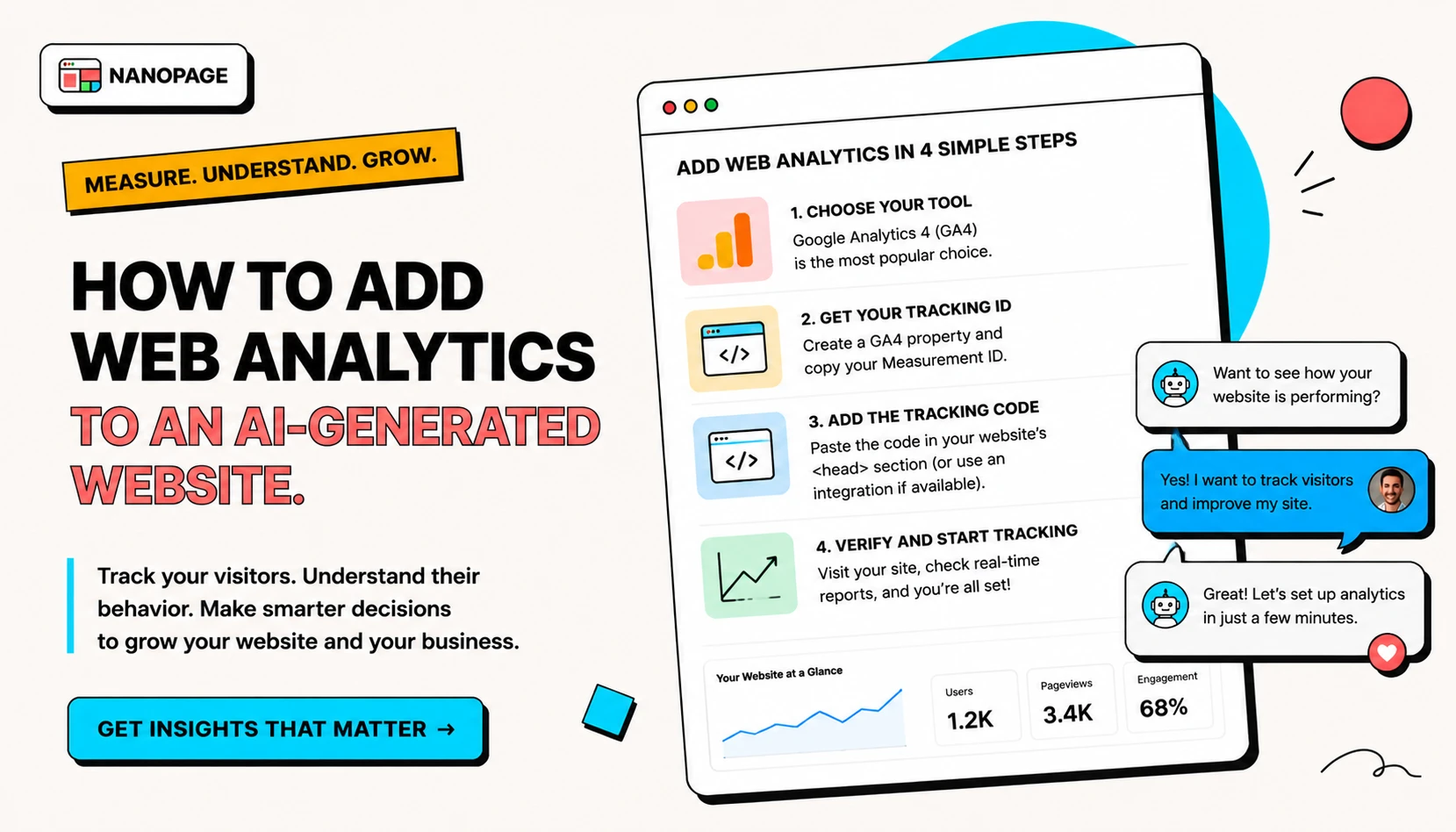
The good news: adding advanced analytics is usually easy. Most analytics providers give you a small tracking snippet. You copy that code, paste it into the Nanopage editing chat, and ask the AI to integrate it into your site.
This guide explains what to choose, where to get the code, and what to ask the AI.
What web analytics tells you
Web analytics answers basic questions like:
- How many people visited the site?
- Which pages did they open?
- Where did traffic come from?
- What devices and browsers did visitors use?
- Which buttons or links were clicked?
- Did visitors come from search, social, email, ads, QR codes, or direct links?
- Which pages are worth improving?
For a simple small business website, you usually do not need a complex dashboard. You need enough signal to know whether the site is being seen and whether visitors are taking the next step.
When to add another analytics tool
Built-in Nanopage analytics is deliberately simple. It answers the first questions most small website owners have:
- How many people visited?
- Which pages did they open?
- Where did traffic come from?
- Which countries are visitors coming from?
- Did traffic change after I shared the link?
Add another analytics provider when you need more detail than that.
For example:
- A restaurant website may want reservation event tracking.
- A realtor may want campaign tracking for a listing page.
- A freelancer may want portfolio click events.
- A wedding site may want RSVP button tracking.
- A PDF page may want download events.
- A local service business may want quote-request conversion tracking.
Different countries, industries, and teams also have different privacy expectations. Some people want Google Analytics. Some prefer privacy-focused tools. Some do not want extra tracking at all.
So Nanopage includes the basic stats by default, then lets you bring a specialized provider when you need one.
Analytics providers you can use
Most web analytics tools work the same way: create an account, add your domain, copy the JavaScript snippet, and place it in the site.
Common options:
- Google Analytics: powerful, widely used, more complex.
- Plausible: simpler and privacy-focused.
- Fathom: simple privacy-focused analytics.
- Umami: open-source analytics you can host yourself or use as a service.
- Matomo: full-featured analytics with self-hosting options.
- Simple Analytics: privacy-focused and lightweight.
- Tinylytics or similar lightweight tools: useful for very small sites.
Pick the tool that matches how much detail you need.
If you only want visits, referrers, and top pages, choose a simple privacy-focused tool.
If you run ads, need advanced attribution, or already use Google products, Google Analytics may make sense.
The basic setup flow
The flow is almost always:
- Choose an analytics provider.
- Create an account.
- Add your website domain or URL.
- Copy the tracking snippet the provider gives you.
- Open your Nanopage site workspace.
- Paste the snippet into the AI editing chat.
- Ask the AI to install it in the page head.
- Publish the updated version.
- Visit the site and confirm the analytics provider is receiving data.
That is it.
The prompt to use
Use this prompt when the provider gives you a tracking script:
Add this web analytics tracking code to the site.

Install it in the document head on every page where it should run.
Do not change the visible design or copy.
Keep the code exactly as provided unless a small adjustment is required for valid HTML.

Tracking code:
[paste the analytics snippet here]
If your site is a single page, "every page" just means the page Nanopage generated.
If your generated site has multiple pages or sections, ask for the snippet to be added globally.
Example: privacy-friendly analytics prompt
If you use a tool like Plausible or Fathom, the provider will usually give you a short script.
Your prompt can be:
Please add this privacy-friendly analytics script to the site.

Place it in the head so it loads on page view.
Do not add any visible banner, button, or text.
Do not change the page layout.

[paste script here]
After the AI updates the site, open the public page in your browser and check the analytics dashboard. Some tools show the visit almost instantly. Others take a few minutes.
Example: Google Analytics prompt
Google Analytics usually gives you a gtag.js snippet.
Use this:
Add this Google Analytics tracking code to the site.

Put it in the head of the HTML.
Keep the measurement ID exactly as provided.
Do not change any visible content.

[paste Google Analytics code here]
Then open the Google Analytics realtime report and visit the site in another tab. If setup worked, you should see activity.
Tracking button clicks
Basic analytics tracks page views. Sometimes you also want to track important clicks.
Examples:
- "Call now"
- "Book appointment"
- "Request quote"
- "Reserve table"
- "Download PDF"
- "RSVP"
- "View menu"
- "Email me"
Ask the AI to add click tracking only after the base analytics script works.
Prompt:
The analytics script is already installed.

Please add click tracking for these important calls to action:
- [button or link name]
- [button or link name]
- [button or link name]

Use the event format recommended by the analytics provider below.
Do not change the visual design.

Provider instructions:
[paste event tracking instructions here]
This is where analytics providers differ, so paste their exact event-tracking instructions instead of guessing.
Tracking PDF downloads
If your site publishes a PDF, deck, resume, brochure, menu, or file download, analytics can help you understand whether people actually click it.
Useful events:
- PDF download
- Resume download
- Menu download
- Pitch deck download
- Brochure download
- Program guide download
Prompt:
Add analytics event tracking to the PDF download link.

Event name:
pdf_download

Trigger it only when visitors click the download button.
Keep the download behavior unchanged.
For more context on when a PDF should become a web page, read PDF vs Web Page.
Tracking QR code traffic
If you put your website URL on a flyer, table card, business card, yard sign, wedding invite, open house sign, or poster, use a URL with a tracking parameter before generating the QR code.
Example:
https://yourdomain.com?source=qr-flyerOr:
https://yourdomain.com?utm_source=qr&utm_medium=print&utm_campaign=spring_menuAnalytics tools can often show visits with those parameters. This is useful for restaurants, events, real estate listings, and local service businesses.
What to measure first
Do not track everything on day one.
Start with:
- Visits.
- Traffic source.
- Top page or section.
- CTA clicks.
- Downloads.
- Form or booking clicks.
For most small sites, those numbers are enough.
If nobody visits, distribution is the problem.
If people visit but nobody clicks, the page may need a clearer offer, stronger proof, better CTA, or more specific details.
If people click but nobody books or buys, the issue may be in the external tool, booking flow, price, availability, or follow-up.
Privacy and consent notes
Analytics can involve privacy obligations. Rules vary by country, provider, cookie behavior, and what data you collect.
Before adding analytics, check:
- Does the provider use cookies?
- Does it collect personal data?
- Does your region require cookie consent?
- Do you need to update your privacy policy?
- Are you using ads or remarketing?
- Are you collecting sensitive health, legal, financial, or children-related data?
For simple public pages, privacy-focused analytics may reduce complexity. For regulated or sensitive industries, get proper advice before adding tracking.
Common mistakes
Avoid these:
- Pasting only the measurement ID when the provider asked for the whole script.
- Editing the script manually and breaking it.
- Adding the same script twice.
- Installing analytics on a preview URL but not the public URL.
- Forgetting to publish after the AI edit.
- Checking the dashboard before the provider has received data.
- Expecting analytics to identify individual visitors.
- Tracking too many events before the base setup works.
Keep it simple. Install the snippet, publish, visit the site, confirm data arrives, then add events if needed.
What to ask the AI after analytics is installed
Once analytics is running, you can ask for site improvements based on what you learn.
Examples:
People visit the page but rarely click Request Quote.
Make the quote CTA clearer and repeat it after the service list.
Most visitors are on mobile.
Make the phone number and booking button easier to reach near the top.People are downloading the PDF but not clicking the contact link.
Add a short next-step section after the download block.Search traffic is landing on this page.
Add a short FAQ section that answers the top customer questions.Analytics is only useful if it changes what you do next.
The short version
Nanopage includes basic analytics with every site. Use that first if you only need page views, approximate visitors, top pages, referrers, countries, and simple date ranges.
If you need advanced analytics, adding another provider is straightforward:
- Pick an analytics provider.
- Copy the tracking snippet.
- Paste it into the Nanopage AI edit chat.
- Ask the AI to install it in the page head.
- Publish.
- Confirm data appears.
- Add event tracking for important clicks if needed.
Build the page first. Add analytics when you want to learn what visitors are doing. Then use the numbers to improve the site.