Launching a website is a one-time event. Keeping it accurate is the actual job.
The lunch menu changes. A new property goes on the market. Next month's workshop needs a page. A sold-out product should disappear. The website does not need a redesign for any of this. It needs a safe, quick way to change the content.
Nanopage now has that built in.
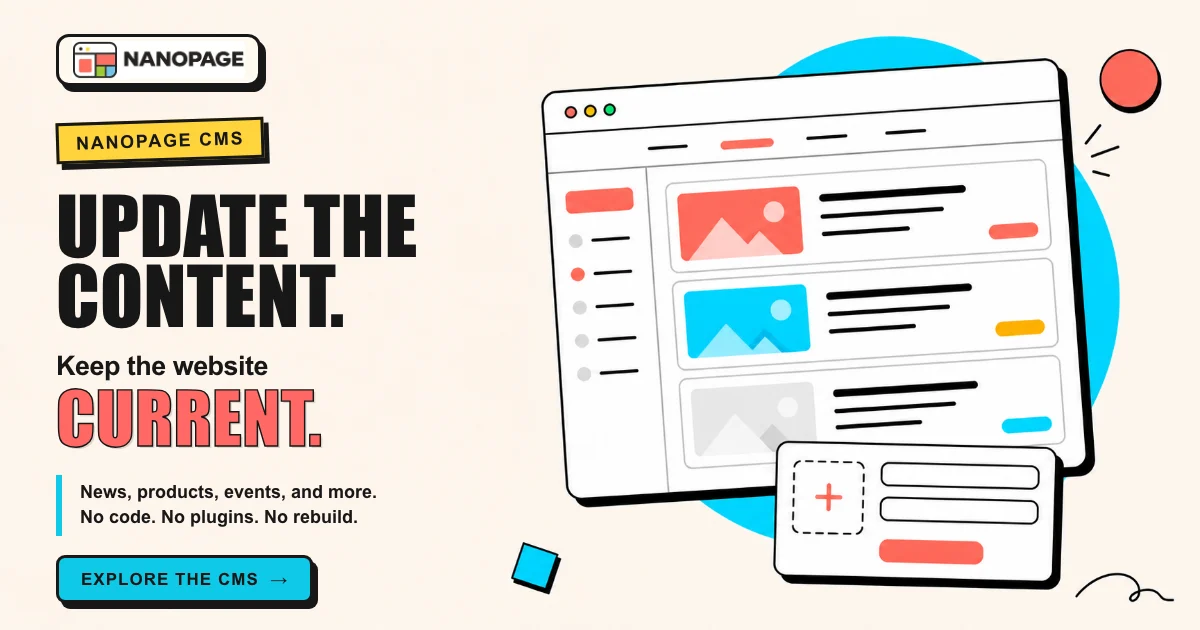
The Nanopage CMS lets you manage news, blog posts, products, menus, events, listings, FAQs, testimonials, galleries, and custom content types from the site workspace. Fill in clear fields, save the entry, and Nanopage keeps the designed page in sync.
No code. No plugin stack. No separate CMS subscription. No AI site change for an everyday content update.
A CMS for the part that keeps changing
CMS stands for content management system. Traditional systems often ask you to configure content models, themes, plugins, and templates before you publish anything useful.
Nanopage starts from the other direction. You describe the site and the content you need. Nanopage creates the design, fields, and pages together. Once that structure exists, the Content tab becomes the simple interface for keeping it current.
The workflow has two distinct parts:
- Use AI to shape the website. Ask for a news section, property directory, restaurant menu, team page, or custom catalog. Nanopage decides how it should look and where it belongs.
- Use the CMS to manage entries. Add the next article, update a price, publish an event, reorder products, or save a draft through familiar form fields.
Use AI again when the design needs to change. If you want different cards, another field displayed, or recent posts moved to the home page, ask for that as a design update.
The design stays flexible, but routine editing becomes predictable.
Ask once. Update whenever you need to.
Setting up editable content takes three steps.
- Tell Nanopage what should be editable. For example: "Add a news section with a title, summary, image, author, date, and full article."
- Nanopage builds the collection, fields, pages, and visual design.
- Open Content whenever you want to add, edit, draft, publish, reorder, or remove an entry.
You do not need to name every technical part. A practical request is enough:
- "Add an events calendar with dates, venues, ticket links, and sold-out status."
- "Turn these dishes into an editable menu organized by category."
- "Add an FAQ I can update without changing the rest of the page."
- "Create a gallery where I can upload a photo and optional caption."
After the first setup, adding an entry is closer to filling in a form than editing a web page.
What you can manage
A collection can use the fields that fit the job: plain text, rich text, images, prices, dates, dropdowns, links, email addresses, phone numbers, and more.
That makes the same system useful for very different websites.
News, blogs, FAQs, and testimonials
Manage headlines, summaries, authors, categories, dates, images, and full articles. Keep the next announcement in draft, publish it when it is ready, and remove old material without opening the website layout.
Products, catalogs, and menus
Edit names, descriptions, prices, photos, availability, categories, and external ordering links. It works well for a focused catalog or menu that needs to stay accurate but does not require native ecommerce checkout.
Events, courses, jobs, and property listings
Structured fields keep dates, venues, prices, status, and links consistent. You can add a listing without copying an old page and hoping every detail gets replaced.
Galleries and custom collections
Upload images with titles or captions while the gallery layout stays intact. For something more specific, ask for your own fields: a directory could use name, specialty, region, phone, and profile link; a venue could use capacity, accessibility notes, pricing, and availability.
Content updates do not spend an AI site change
Adding, editing, drafting, publishing, reordering, or deleting CMS entries does not use an AI site change. Those actions use the structure already connected to the site.
An AI change is only needed when you change the structure or presentation: adding a field to the design, turning cards into a table, showing recent posts on the home page, or moving the section into the navigation.
That gives a small team a sensible division of work. Use AI for creative and structural decisions. Use the CMS for recurring updates that should be fast and exact.
It also protects the layout. Someone changing a workshop date edits the date field. They do not need to find the right text layer and make sure the mobile design still works afterward.
Draft, publish, search, and reorder
Real content management needs more than an Add button.
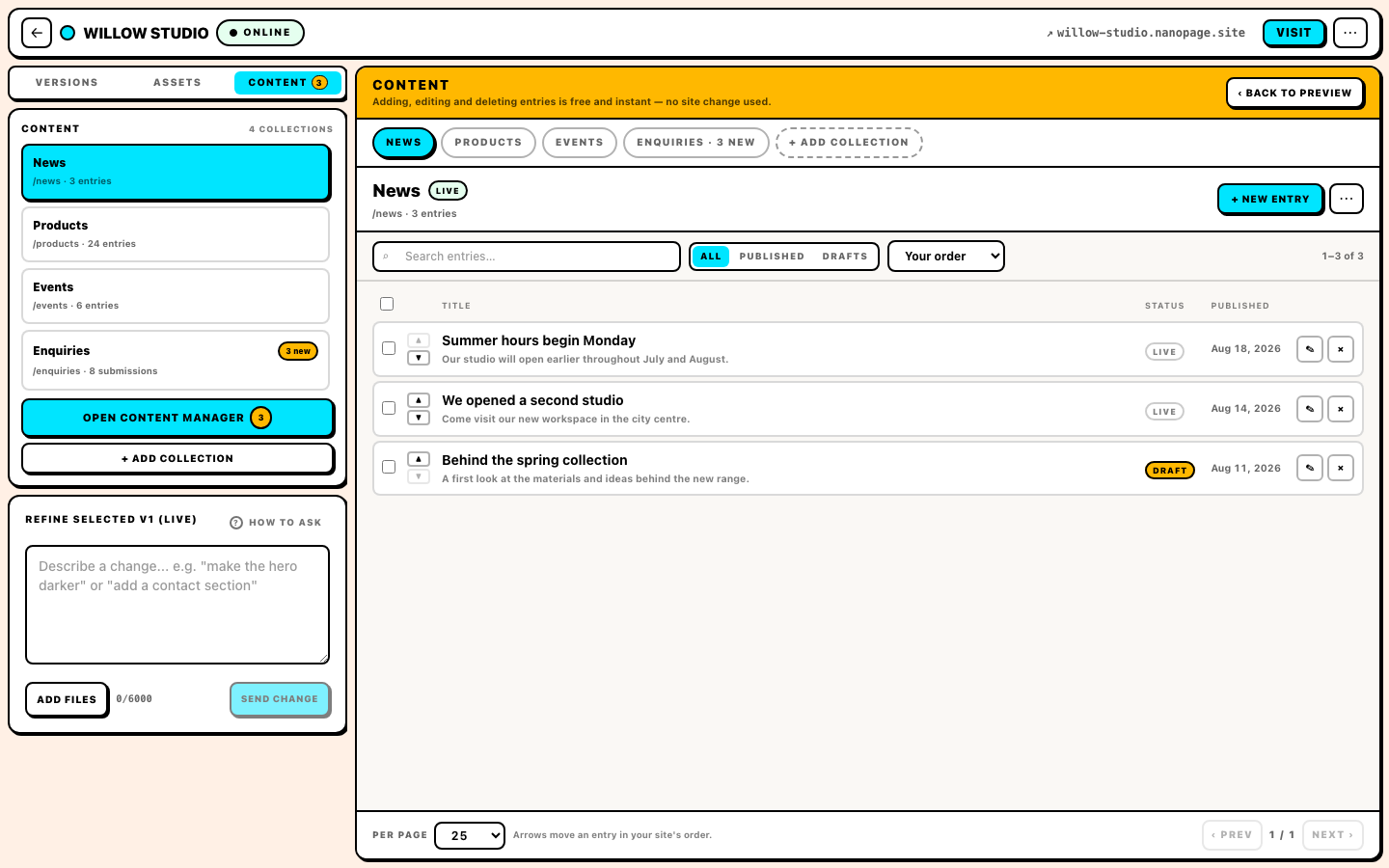
The Content workspace lets you search entries, filter published items and drafts, sort the list, change the display order, select several entries, and page through larger collections.
Drafts separate writing from publishing. A restaurant can prepare a seasonal menu before launch day. An organization can write an announcement, let a colleague review it, and publish it at the right time.
The website remains the public result. The CMS is simply the safe workspace behind it.
Search-ready pages, forms, and collaborators
Published entries become complete HTML pages rather than content hidden inside a dashboard. For content types with individual pages, Nanopage keeps the page URLs, sitemap, and RSS feed updated automatically.
That gives each article, event, product, or listing a real address people can open and share. Good search performance still depends on useful titles, accurate details, and original material. The CMS makes sure the publishing machinery does not get in the way.
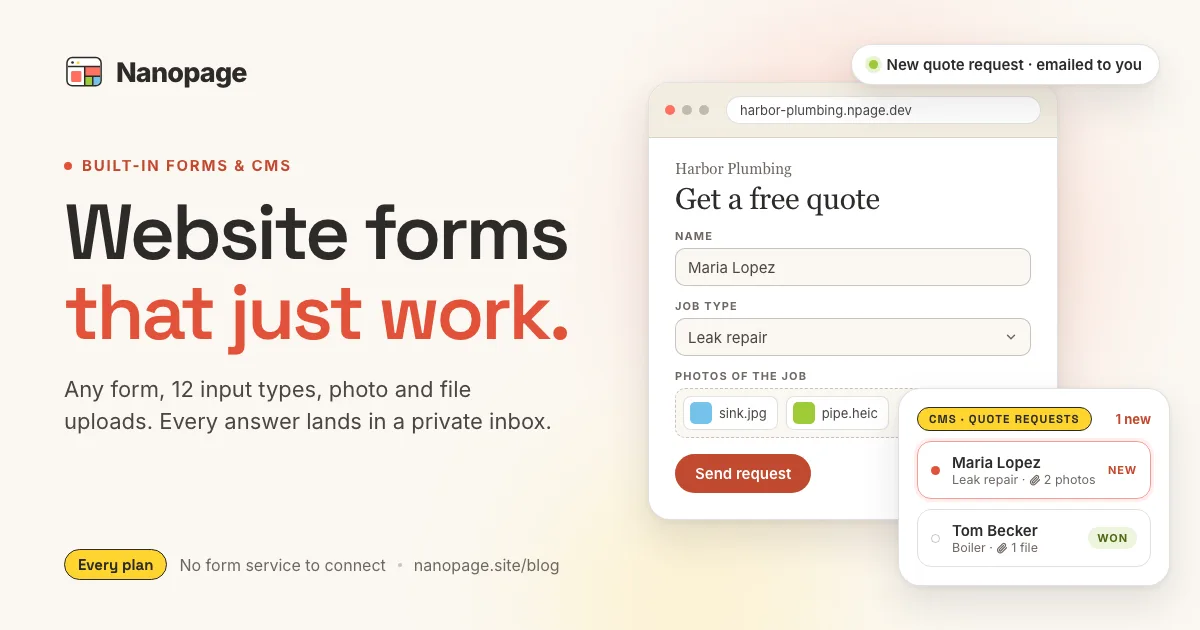
Contact, booking, quote, and enquiry forms can send submissions into a private inbox in the Content workspace. New submissions have unread markers, and email notifications tell you when something arrives. It is a lightweight form inbox rather than a full CRM, which is often enough for a focused site.
You can also invite collaborators. A colleague can manage events, the person who owns the menu can update prices, or a client can publish news after an agency hands over the site. Named fields make that handoff much safer than giving everyone control over the page layout.
When Nanopage CMS is the right fit
Nanopage CMS is designed for small, practical websites where repeated items need regular updates.
It is a strong fit for restaurants changing menus, venues publishing events, realtors managing listings, photographers adding work, local organizations posting news, small brands maintaining catalogs, and consultants publishing articles and collecting enquiries.
It is not trying to replace every content platform. If you run a large newsroom with complex approvals, publish at very high volume across many teams, need deeply integrated ecommerce, or want a headless CMS feeding several apps, use a system built for that scale.
Nanopage handles the more common job: launch a focused website quickly, then keep its changing parts accurate without turning maintenance into a second profession.
Add the CMS to a new or existing site
You can ask for editable content during the first build or add it to a site you already have.
For a new site, include the changing content in the brief:
"Build a website for our neighborhood arts center. Include editable events with title, date, venue, description, image, ticket link, and status. Show the next three events on the home page and give every event its own page. Add a form for venue enquiries."
For an existing site, name the section you want to make editable:
"Turn the current testimonials into an editable collection with name, role, quote, and optional photo. Keep the existing design and use the current testimonials as the first entries."
Nanopage can use repeated content already on the site as the starting entries, so adding a CMS does not mean starting again.
The short version
AI makes the first website build fast. A CMS keeps the result useful after launch.
Ask Nanopage to create the editable content your site needs. Then add, draft, publish, reorder, and remove entries from the Content workspace without code or an AI site change. Your designed pages, sitemap, RSS feed, forms, and team workflow stay connected.
The site can change every week without being rebuilt every week.
Explore the built-in CMS, or start a Nanopage site and ask for the content you need to keep current.