A website is not only something people read. It is also how they send you things.
A homeowner asks for a quote and attaches a photo of the damage. A parent signs a child up for a summer camp. A candidate applies for a job and uploads a CV. A new client fills in an intake questionnaire before the first meeting. A happy customer leaves a review.
Each of these is a form, and on most small websites each one means another tool. One service collects the answers, a spreadsheet stores them, file uploads need a paid plan somewhere else, and an email rule forwards everything to the right person. Each tool works on its own. Together they make one more system to maintain.
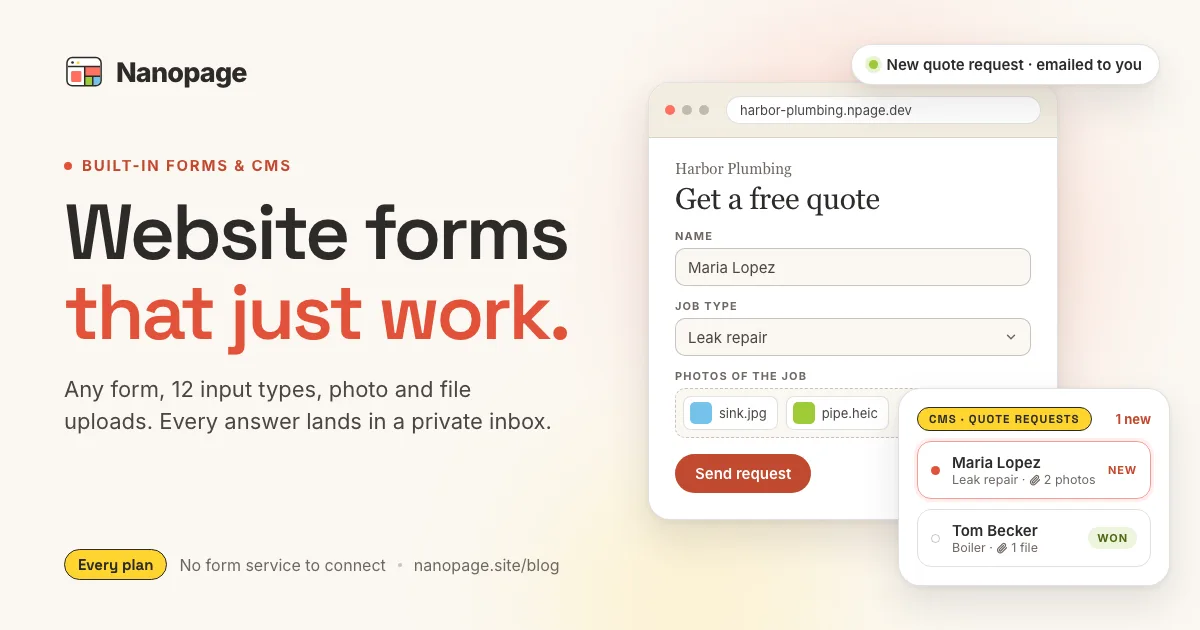
Nanopage builds forms in. Any site can have any number of forms with the fields you choose, including photo and document uploads. Every submission lands in a private inbox, with email alerts, spam handling, and CSV export. It all works out of the box, with no other service to connect.
This guide covers what you can build with Nanopage forms and how to set each part up. It ends with the rest of the Nanopage CMS.
Any form, not just a contact form
If your business needs to collect it, a form can ask for it. Small businesses use Nanopage forms for:
- Enquiries and quotes: a contact form, a quote request with the service needed, a callback request.
- Registrations: classes, workshops, camps, tastings, RSVPs, volunteer sign-ups, waitlists.
- Applications: job openings with a CV, internships, vendor or exhibitor applications, award entries.
- Client intake: a project brief with reference files, a new-patient or new-client questionnaire, a booking request with preferred dates.
- Submissions: photos of a job, a floor plan, artwork for a print order, entries for a photo contest.
- Feedback and proof: reviews, testimonials, a guestbook, suggestions from members.
- Audience: newsletter and update sign-ups.
A site can have up to 25 forms and content sections, and each form can have up to 20 fields.
Two ways to create a form
Ask for it. Describe the form in the chat, the same way you describe any other change:
- "Add a quote request form with name, phone, postcode, job type as a dropdown, a description, and up to two photos."
- "Add a registration form for the summer camp with parent name, email, phone, child's name, date of birth, and a yes/no for photo consent."
- "Add a careers form with name, email, the role as a dropdown, a cover letter, and a CV upload that only accepts PDF or Word."
Nanopage designs the form to match the site, adds it to the page, and creates the inbox behind it.
Set it up from the CMS. Open the CMS tab, switch to Manage, and choose Add collection. Under "Forms visitors fill in", pick a starting point and change it however you like:
- Contact form: name, email, message.
- Quote request: name, email, phone, service, details, plus a private status: New, Quoted, Won, Lost.
- RSVP / Registration: name, email, guests, note, plus a private "Confirmed" flag.
- Job application: name, email, phone, position, cover letter, CV upload, plus a private stage and notes.
- Reviews: name, email, 1–5 rating, review, plus a private "Featured" flag.
- Feedback wall: name, email, comment, plus a private "Featured" flag.
- Newsletter signup: email and name.
- Custom form: start from nothing and add exactly the fields you need.
At the last step, choose Add the form and Nanopage places it on your site in your design.
Creating the inbox is free. Placing the form on the page is a design change, so it uses one AI change, just like typing the request in the chat.
Every input type you need
Each field has a type, so visitors get the right control, and you get clean data back:
- Text for names, postcodes, order numbers, and other short answers.
- Long text for messages, descriptions, cover letters, and project briefs.
- Email and Phone. Nanopage checks that these look valid before accepting the submission, and an email field powers one-click replies.
- Number for guests, quantities, square metres, and years of experience.
- Price for budgets and offers.
- Date for event dates, preferred appointment days, and dates of birth.
- Dropdown with your own options, such as service type, role, ticket tier, or T-shirt size.
- Yes / no for consent, newsletter opt-ins, and "I have read the terms".
- Link for a portfolio, LinkedIn profile, or website.
- Image for photo uploads.
- File for document uploads.
Any field can be required. The form won't send until it is filled in, and the visitor sees which field needs attention.
Fields marked Only me are never shown to visitors. You fill them in from the inbox. A quote form becomes a small sales pipeline once each enquiry has a status of New, Quoted, Won, or Lost. A job form becomes a hiring tracker once each candidate has a stage and private notes. A registration list shows who has paid or been confirmed.
Photo and document uploads
File uploads are where most form tools start charging, and where most small business sites give up and say "email us the file". On Nanopage, an upload is just another field.
- Image fields accept photos: JPG, PNG, WebP, GIF, AVIF, and HEIC straight from an iPhone.
- File fields accept documents: PDF, Word, Excel, PowerPoint, OpenDocument, RTF, text, CSV, ZIP, and images. You can limit each field to the types you want, such as PDF only for a CV, or images and PDF for a floor plan.
- Several upload fields per form. Ask for "a CV and a portfolio" or "a photo of the front and a photo of the damage".
Uploads are built to be safe to open:
- Every file is checked by its actual contents, not just its name. A program renamed to
cv.pdfis rejected. - Uploaded files are private. They are never published as pages on your site, and they open only as downloads from your dashboard.
- Each file can be up to 5 MB, and each submission up to 10 MB in total. A site can hold 1 GB of form uploads. If a visitor picks a file that is too large, they are told before the upload starts.
- Deleting a submission also deletes its files.
In the inbox, open a submission and click Download to get a file. The CSV export lists each upload by its original file name.
Where submissions go
Every submission lands in the CMS tab of your site. An unread count appears on the tab, and each form shows how many new messages are waiting.
From the inbox you can:
- Search every submission and filter by unread or read.
- Open a submission. It is marked as read automatically, and you can mark it unread again if you need to come back to it.
- Reply by email with one click. Your email app opens with the visitor's address filled in.
- Update your private fields, such as status, stage, or notes.
- Download uploaded files.
- Select several at once to mark them read, unread, or spam, or to delete them.
- Export CSV with one column per field, plus the received date and read status. The file opens cleanly in Excel, Numbers, or Google Sheets.
The CSV export is also how a form connects to the rest of your work. Export registrations into your class roster. Export newsletter sign-ups when you are ready to send a campaign from Mailchimp, Kit, or any other email tool.
Email alerts, sent where you want them
You do not have to check the dashboard to know something arrived. By default, every submission is also emailed to your account address.
In Edit fields for any form, you can:
- Turn alerts on or off for that form. Newsletter signups start with them off, because nobody needs an email per subscriber.
- Send alerts to up to five more addresses, such as a colleague, a shared inbox, or the person who handles bookings.
- Write your own subject line using the form's field names, such as "New quote request from {{name}}", so alerts are easy to scan and filter.
When the form has an email field, the alert's reply-to is set to the visitor. Replying from your email app goes straight to them.
The alert lists every answer and links back to the submission in your dashboard. Each site sends up to 20 alerts a day. Submissions beyond that are still stored in the inbox.
Spam handling that does not lose real messages
Every Nanopage form includes a hidden trap field. People never see it. Simple bots fill in every field they find, including the trap.
Filled traps are not silently dropped. Browser autofill and password managers sometimes fill hidden fields for real visitors, and a protection system that throws away a genuine customer's message is worse than a little spam. So those submissions go to a Spam filter in your inbox, where you can look through them and click Not spam on anything real. Flagged messages do not send email alerts.
Each form also limits how often one visitor can submit, and how much one site can receive in a day. A script hammering your form cannot fill your inbox, and it cannot use up the site's allowance so real visitors are blocked.
There is no CAPTCHA. Your visitors never have to pick out traffic lights before they can sign up.
Close a form on a date or when it is full
Registrations and applications usually have limits. In Edit fields under "Accepting submissions", you can:
- Switch the form between Open and Closed.
- Set a last day for submissions, such as the application deadline.
- Stop after a number of submissions. Use it for a workshop with 30 seats or a tasting with 12 places. Deleting a submission does not reopen a full form.
- Write the message visitors see when it is closed: "Registration is full. Join the waitlist by emailing us."
Show approved submissions on the site
Some forms are meant to be seen. Reviews, a guestbook, a community wall, a list of confirmed attendees.
Turn on Show approved submissions on the site and choose which fields can appear. Nothing goes public until you Approve it. Hide from site removes it again. Email addresses, phone numbers, and uploaded files are never shown, even if you tick them by mistake.
Approved entries can have their own page or appear as a section on your home page. Setting up that display is a one-time design change. After that, approving a review is a single click.
The small things handled for you
- The page does not reload. The visitor sees a confirmation next to the form, in the language your site is written in. If something is missing or invalid, the message appears next to that field.
- It still works without JavaScript. Older browsers and strict privacy settings still submit successfully and return to the form.
- Protected sites stay protected. On a password-protected site, only visitors who have entered the password can submit a form.
- No outside services. Forms post to your own site. There is no third-party form service to sign up for or embed.
Changing a form later
Changing a form's questions works in two steps. First, update the fields in Edit fields and save. Then click Update design to put the new questions on the page. That design step uses one AI change. Existing submissions and their answers are kept.
Beyond forms: the rest of the CMS
Forms are things visitors send to you. The same CMS handles the opposite direction too: content you publish for visitors.
Content collections. Under "Content you publish", the starting points are News, Blog, Products, Events, FAQ, Testimonials, Gallery, and Custom. You can also ask in the chat: "add an events section I can update myself". From then on you can do all of this from the CMS:
- Add, edit, and delete entries through simple fields.
- Write articles in a rich text editor.
- Save drafts and publish them when they're ready.
- Drag entries into order.
- Upload a batch of gallery photos at once.
Each collection gets its own page, entries can get their own addresses, and RSS and your sitemap update themselves. None of this uses an AI change.
Edit the page yourself. In the preview, switch on Edit, click any element, and choose Edit myself to change text, update a link, or swap an image. On a paid plan, direct edits do not use an AI change. Use Ask AI for design changes, such as "make this section darker".
The workspace around it.
- Assets holds your images and files.
- Versions lets you make an older version live again if something goes wrong.
- Collaborators: up to 20 per site, so a colleague can answer the inbox.
- Analytics: built in and cookieless.
- Password protection for private pages.
- Custom domain with automatic SSL.
What costs what
These never use an AI change:
- Receiving, reading, replying to, downloading, and exporting submissions.
- Changing a form's alerts, deadline, submission limit, or closed message.
- Adding, editing, publishing, reordering, and deleting CMS entries.
- Direct edits with Edit myself, on a paid plan.
These use one AI change each:
- Placing a new form or collection on the page.
- Putting changed form questions on the page with Update design.
- Design changes such as layout, colors, or new sections.
The CMS, forms, and file uploads are included in every Nanopage plan. Plans differ only in capacity. See pricing.
What it does not do (yet)
It is better to know the edges before you rely on something.
- No automatic reply to the visitor. The visitor sees a confirmation on the page, and you reply personally with one click.
- No multi-step forms or conditional questions. Every field is shown at once. Keep forms short, or split very different requests into separate forms.
- No payments, bookings into a calendar, or ticket sales. For those, link to or embed a tool built for the job, such as Stripe, Calendly, or Eventbrite. Nanopage forms collect information and files.
- No automations or CRM integrations. Use CSV export to move data into other tools.
- Not for highly sensitive records. Do not use a website form to collect card numbers, passwords, government IDs, or medical records.
Five setups to copy
A plumber or roofer. "Add a quote request form with name, phone, postcode, the job type as a dropdown, a description, and up to two photos." Send alerts to your phone's email and a business partner. Use the private status field to track which quotes you won.
A summer camp or workshop. "Add a registration form with parent name, email, phone, child's name, date of birth, a T-shirt size dropdown, and a yes/no for photo consent." Set a last day, stop after 40 submissions, and export the list as your roster.
A small team hiring. Pick the Job application preset, limit the CV field to PDF and Word, and add a link field for a portfolio. Use the private stage and notes fields as your shortlist.
A design studio or print shop. "Add a project brief form with name, email, budget, deadline as a date, a description, and a file upload for reference files or artwork." Every brief arrives with its files attached.
A café or B&B building trust. Pick the Reviews preset, approve the best ones, and show them on the home page. New reviews wait for your approval before they appear.
The short version
Forms are how a website turns visitors into customers, sign-ups, and applicants.
On Nanopage, forms are built in. Build any form you need with the right input types, including photo and document uploads. Submissions land in a private inbox, alerts reach the right people, suspected spam is set aside rather than deleted, and everything exports to a spreadsheet. The same CMS handles your news, menus, events, and galleries.
Ask for the form you need, then let the site do its job.
Explore the built-in CMS, or start a Nanopage site and describe the form in your first message.