Until now, every Nanopage site had exactly one privacy setting: public at its URL.
That is the right default for a restaurant menu, a resume, or a service page. It is the wrong default for a set of documents you only want twelve people to read.
So we added password protection. Turn it on from the site workspace, pick a password, and share it with whoever should get in. Everyone else gets a password box and nothing else.
It is off by default, included on every plan, and you can turn it off again whenever the page should become public.
How it works
Open the site menu in your workspace, choose Password protection, type a password, and turn it on. Then share the link and the password with the people who should see it.
A visitor who opens the link gets a plain "Password required" page. They type the password, press Unlock, and the site loads normally. The unlock lasts seven days in that browser, so people who come back during the week do not have to type it again.
A few things worth knowing:
- One password for everyone. No visitor accounts, no sign-ups, no per-person passwords.
- It covers the whole site. Every page, image, and PDF on it, not just the home page.
- Changing it locks everyone out again. That is how you cut off access to someone: set a new password and give it to the people who should still have it.
- Search engines stay out while protection is on, and the site drops out of results.
- A forgotten password cannot be looked up. It is stored hashed, so set a new one instead.
Turning protection off makes the site public again instantly, at the same URL. Custom domains, editing, and analytics keep working throughout.
What it is good for
The obvious case is the one that prompted this: you have documents to share with a specific group, and email attachments are a bad way to do it.
Sharing documents and PDFs with a defined group
Put the files on a small site — a short intro, the context someone needs, and the documents themselves — then password-protect it and send one link.
This works for acquisition and due diligence material, board packs, annual reports for members, contracts and quotes, technical specs, tender documents, and anything else that currently lives as a chain of forwarded attachments.
What you get over email:
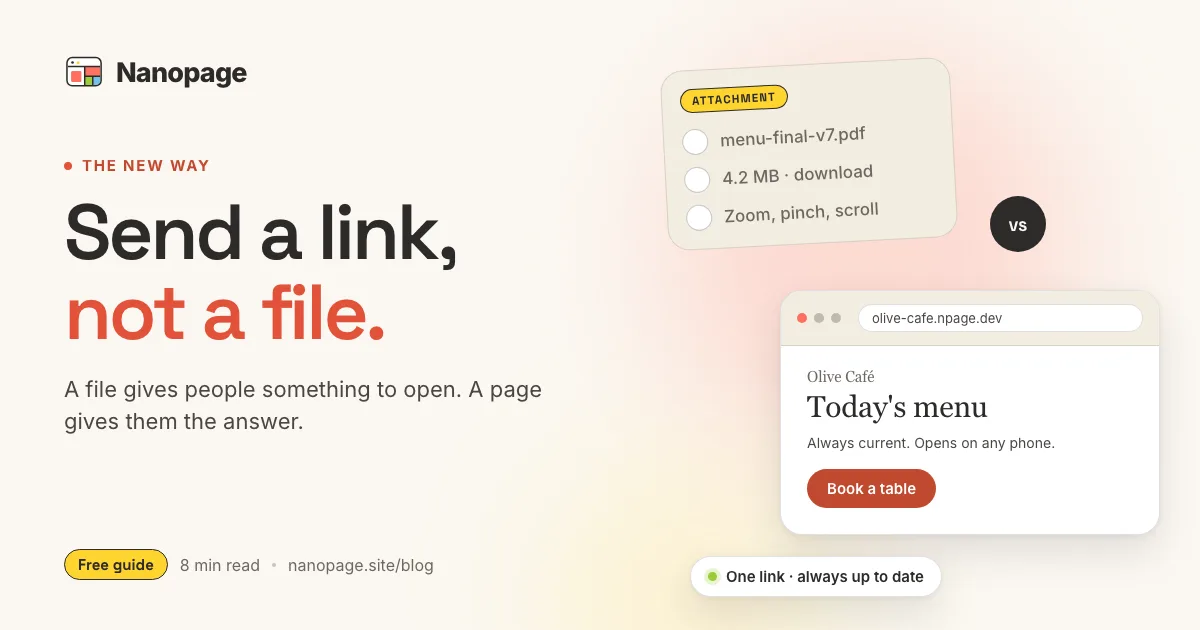
- One link instead of a folder of attachments and a follow-up correcting one of them.
- The version at the link is always the current one, because you update the page instead of resending files.
- Room for the explanation around the documents — what to read first, what changed, who to call.
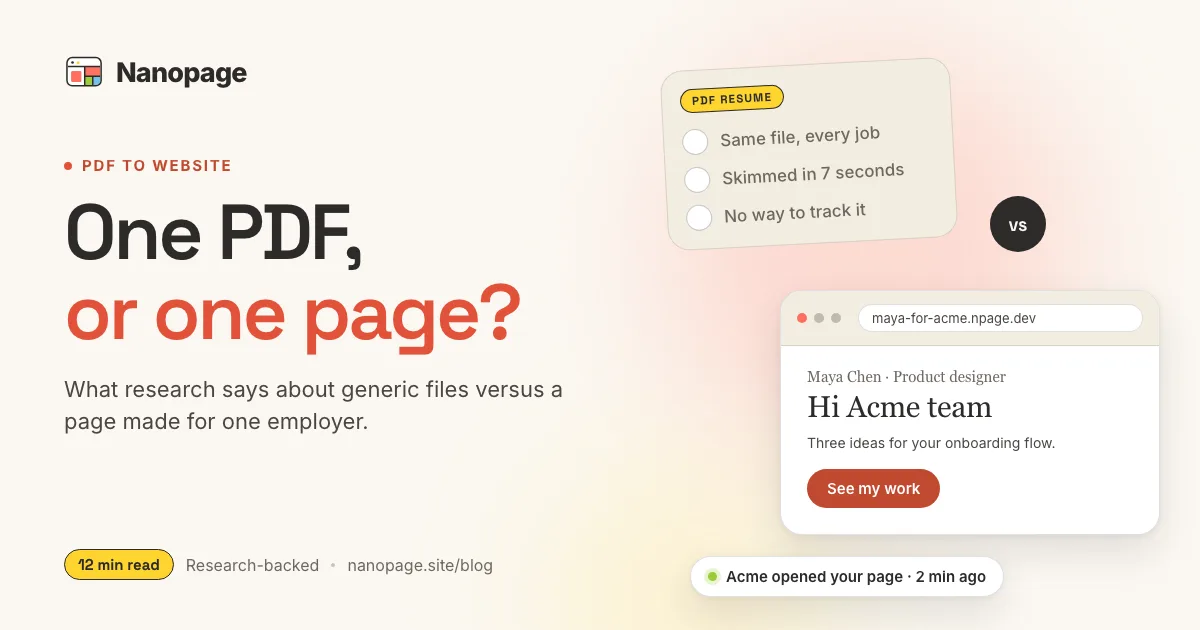
If you are weighing a PDF against a web page in general, PDF vs Web Page: When to Convert covers that decision on its own.
Client work before it goes public
Almost everyone who builds something for a client needs a private stage.
- A site draft the client should review before launch.
- A design presentation, brand guidelines, or a proposal that is not for the public.
- A photographer's gallery for the couple, the family, or the brand that hired them.
- A wholesale lookbook for buyers, with prices you do not want competitors reading.
- A consultant's report delivered as a page instead of a document.
The password is often the difference between "here is a link" and "let me zip this up and find a file transfer service."
Confidential business pages
Some pages are meant for a handful of people and would be awkward in public.
- A fundraising deck or investor update, shared with a small list.
- A pricing or scope page written for one specific client.
- A page of numbers for a partner, franchisee, or supplier.
- A pre-market property listing you are showing a few buyers before it hits the portals.
For genuinely sensitive deals, keep the full material in whatever secure system you already use and put the summary version behind the password. A shared password is a good door, not a vault.
Internal and members-only pages
A password-protected page is a cheap replacement for an intranet nobody wants to build.
- Staff handbook, house rules, opening and closing checklists.
- Event run-of-show for the crew: schedule, contacts, load-in times, floor plan.
- Contact lists and on-call rotas that should not be scraped off a public page.
- Club, association, or HOA member pages: minutes, budgets, schedules, forms.
- Course or workshop material for people who paid for it.
Personal pages you want quiet
Public by URL is fine for most personal sites. Sometimes it is not.
- Wedding details for guests: address, timings, house rules, travel notes.
- A memorial page for family and friends.
- Baby or family updates with photos you would rather not publish to the whole internet.
- A portfolio containing client work you are contractually not supposed to show around.
If your best work is under NDA, a protected site lets you show it to one hiring manager: send the link and password with the application, then change the password once you have your answer.
Sharing the password
The password is only as good as the way you hand it out.
- Send the link and the password separately when it matters — link by email, password by message or in person.
- Use something you can say out loud over the phone. Three unrelated words beat one clever word with symbols.
- Do not reuse a password you use anywhere else. This one gets forwarded by people; that is what it is for.
- Change it when the group changes or the project ends. Rotating the password is the revoke button.
To find out whether anyone actually opened the page, check the site's Analytics tab. It will not tell you who, but it will tell you whether the link was used.
What it does not do
It is one password for the whole site, not per page. If you need one public page and one private page, make them two sites and link between them. Same for per-client galleries: separate access means separate sites.
You cannot see who opened the page or remove one person's access. Everyone shares one password, and rotating it affects everyone at once.
A password does not stop forwarding. Anyone who unlocks the site can copy the content, download the PDF, take a screenshot, or pass the password on. Treat it like a key to a meeting room: it keeps the page away from search engines and strangers with the URL, not out of the hands of someone your recipient decides to share it with.
It is not a data room or a secrets manager. Do not put passwords, API keys, ID scans, or anything you would be legally obliged to report as a breach behind a shared string. For material at that level, use a system built for it and put the summary on Nanopage.
The short version
Password protection is available now, on every plan, off until you turn it on.
The best use is the boring one: a small site with the documents, context, and links a specific group of people needs, shared as one URL and one password instead of a folder of attachments.
Build the page, turn on the password, send the link.