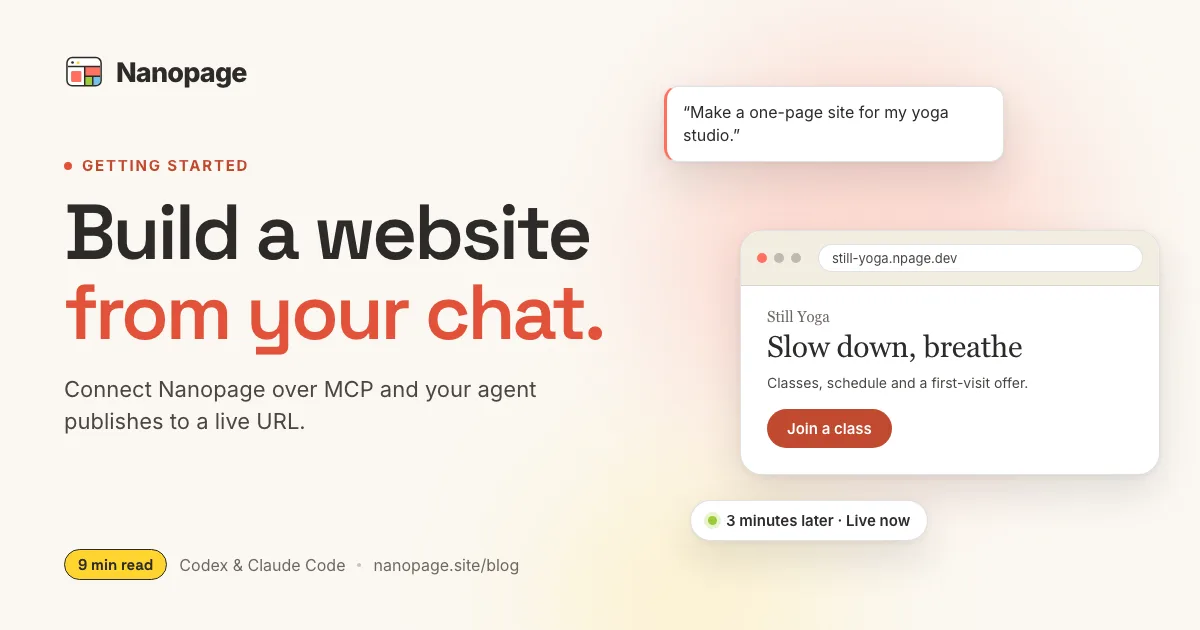
You can now build a website by describing it to ChatGPT, and have it live on a real URL before you close the window.
The reason is Codex, the coding agent built into the ChatGPT desktop app. Open ChatGPT on your Mac or Windows machine, pick Codex from the menu in the top-left corner, and you have an AI that can create and edit files in a folder on your computer, not just answer questions in a chat. Claude Code, Anthropic's coding agent, does the same job and comes as a desktop app, a terminal command, and a VS Code or JetBrains extension.
On their own, either one can write a website. Neither can put it online. That is the gap Nanopage fills. Connect it to your agent once, over MCP, and publishing becomes something the agent does inside the same conversation: it writes the files, then calls Nanopage to put them on a public address. No builder in one tab and a host in another, no hosting account to set up, no folder of files to upload.
This guide walks through the whole loop. The connection step differs between the two apps, and the guide covers both. Everything after that is the same.
What you end up with
A live website at an address like yourbusiness.nanopage.site, published from a prompt.
Not a preview, not a zip file waiting to be uploaded somewhere. A public page you can send to a customer while the conversation is still open.
What MCP actually does here
MCP, the Model Context Protocol, is the standard way an AI client discovers and uses tools that live outside it. Your agent already knows how to read and write files on your computer. MCP is how it learns to do something it could not do before.
Nanopage runs an MCP server. Once your agent is connected to it, publishing stops being a separate job. The agent can check whether a name is taken, publish a site, look at the sites already in your account, and ship a new version of one, all through tool calls it makes on its own while you talk to it.
One detail worth knowing up front: through MCP, your agent generates the website. Nanopage does not run a second AI pass behind the scenes. Your agent's model writes the HTML, CSS, and JavaScript; Nanopage validates the result, stores it, and serves it. You are paying for generation once, inside the tool you already use.
Before you start
You need three things:
- ChatGPT (with Codex) or Claude Code installed.
- A Nanopage account.
- Whatever the site is about: your business details, a resume, a menu, photos, a PDF, some notes. Rough material is fine.
You do not need a domain, a host, a build step, or a deploy pipeline. Those are the parts Nanopage takes over.
Step 1: Pick your agent
Either works, and both have a desktop app. The practical difference is which subscription you already pay for.
ChatGPT (Codex) is the natural choice if ChatGPT is already your daily tool. Open the app, switch from Chat to Codex in the top-left menu, and you are in a coding agent that can read and write files in a project folder. You can set Codex as the view the app opens in, if that is where you spend your time.
Claude Code is the natural choice if you already have a Claude subscription. Use the desktop app, the claude command in a terminal, or the extension inside VS Code or JetBrains. They all share the same project and the same MCP connections.
If you have both, use whichever one already has the project open. The Nanopage side is identical.
Step 2: Connect Nanopage
The endpoint is the same for every client:
https://api.nanopage.site/mcpHow you sign in is where the two apps differ. Claude Code signs in through your browser. ChatGPT asks for the URL and a token. Both take about a minute.
ChatGPT (Codex): paste the URL and a token
First, get a token. Sign in at nanopage.site/mcp, create a personal access token, and copy it. It starts with np_ and is shown once.
Then, in the ChatGPT desktop app:
- Open Settings, then MCP servers.
- Click Add server.
- Name it
nanopage. - Choose Streamable HTTP as the type, not STDIO. Nanopage is a remote server.
- Paste
https://api.nanopage.site/mcpas the URL. - Paste your
np_token in the bearer token field. - Save.
That is the whole setup. The same server also works from ~/.codex/config.toml, which the Codex CLI and IDE extension read too. Put the token in an environment variable and name that variable in the config, rather than pasting the token itself:
[mcp_servers.nanopage]
url = "https://api.nanopage.site/mcp"
bearer_token_env_var = "NANOPAGE_MCP_TOKEN"
The token carries a single mcp scope. It can publish and read back your sites, and nothing else: no billing, no account settings, no deleting. You can see when it was last used and revoke it from the same page you created it on.
Claude Code: sign in through the browser
Claude Code supports MCP OAuth, so there is no token to create. You add the URL, and Claude Code opens your browser to sign in.
In the desktop app, open the MCP settings, add a server, and paste https://api.nanopage.site/mcp as the URL. Your browser opens, you sign in to Nanopage and approve, and the connection is live. The desktop app, the terminal, and the IDE extension all read the same configuration, so you only do this once.
If you prefer a terminal, the same thing is one command, followed by /mcp in a session to trigger the sign-in:
claude mcp add --transport http nanopage https://api.nanopage.site/mcpAnd if you would rather keep the connection with the project, drop a .mcp.json file in the project root instead. Claude Code finds the sign-in flow on its own:
{
  "mcpServers": {
    "nanopage": {
      "type": "http",
      "url": "https://api.nanopage.site/mcp"
    }
  }
}
Other clients
Claude Desktop and Cursor also connect over OAuth, and any MCP client that cannot open a browser, such as a CI runner, can use the same np_ token as ChatGPT. The Nanopage MCP setup page keeps a copy-ready snippet for each.
Check that it worked
Ask your agent to list your Nanopage websites. If it comes back with your account's sites, or with an empty list, you are connected.
Step 3: Point the agent at the authoring guide
This is the step people skip, and it is the one that saves the most time.
Nanopage exposes its authoring spec as an MCP resource: nanopage://spec/authoring-guide.md. It describes the file layout, the hard rules, and the size limits. An agent that reads it before generating writes a site that publishes on the first attempt. An agent that guesses will usually reach for an external font or a CDN script, get rejected, and need a correction round.
Say this once at the start of a project:
Read the Nanopage authoring guide from the MCP resource before you
generate anything.
There is also a prompt, nanopage_publish_site, that bootstraps a publishable site from a topic with the spec already inlined. If your client shows MCP prompts in a menu, that is the shortest path of all.
Step 4: Describe the website
Now it is an ordinary conversation. Say what the site is for, who it is for, and what has to be on it.
Build a one-page website for a two-person bakery in Lisbon called Forno.
Sections: hero with the name and a line about sourdough, opening hours,
the weekly bread list, how to pre-order, and a map link. Warm, simple,
mobile-first. Use the photos in ./photos and the prices in menu.md.
Because the agent is already sitting in your project folder, it can use what is there. Point it at a PDF, a folder of images, an old brochure, a README. That material is usually better than anything you would type into a prompt box from memory.
If you want the structure to be solid before a single pixel exists, our website brief template has copy-paste examples for different kinds of sites.
Step 5: Publish
When the files look right, say so:
Publish this to Nanopage as "Forno Lisboa".The agent calls suggest_slug to check the address, then publish_website with the bundle. Publish jobs land immediately, so the URL is live as soon as the call returns. The agent will tell you the address.
Photos do not travel inside the tool call. For binaries, the agent uses create_upload to get a one-time upload URL, PUTs the file, and references the returned key in the publish. That happens without you asking; it is worth knowing only so the extra step in the transcript makes sense.
Step 6: Change it, then publish again
This is where the setup pays off. Every later change is one sentence:
Move the bread list above the hours, and change the pre-order cutoff
to Thursday at 6pm.
Add a page for the Saturday market stall and link it from the footer.Each publish becomes a new version of the same website, with the same URL. The version history lives in your Nanopage dashboard, so you can look back at what changed and promote an earlier version if a change was wrong. Your agent can read stored versions too, which means it can pick up a site it published last month and keep working on it without you re-explaining anything.
What the agent can and cannot do
It can:
- Publish a new website.
- Publish a new version of an existing one.
- List and inspect your websites and their versions.
- Read files back out of a stored version.
- Check a slug and get an available alternative.
- Check the status of a publish job.
It cannot delete anything. Destructive actions are deliberately not exposed over MCP, whether the agent signed in through OAuth or with a token. If you ever want to remove a site, do it from the Nanopage dashboard.
The rules your site has to follow
Nanopage hosts self-contained static sites. That constraint is what makes a page load fast and keeps it working years from now, and it is enforced at publish time rather than left as advice.
Rejected: external scripts, stylesheets, and fonts (bundle them inline), iframes and embeds, javascript: URLs, service workers, off-site meta refresh, forms posting to another host, and anything that needs a backend.
Allowed: index.html plus up to 14 more {slug}.html pages, assets/site.css, assets/{slug}.js, and the images/, files/, and videos/ folders. Limits are 50 MB per file and 1 GB per site, with no cap on the number of files.
When a bundle breaks a rule, the error comes back machine-readable, so the agent reads it, fixes the bundle, and republishes. You will often see this happen and resolve itself in a single turn. That is the point: hosting requirements become a contract the agent can act on, instead of a deployment checklist you debug by hand.
Prompts that produce better sites
- Give it real content. "Use the copy in about.md and the photos in ./photos" beats any amount of styling adjectives. Agents invent plausible filler when you leave a gap.
- Name the audience and the one action. A site that exists to get phone calls looks different from one that exists to get resumes read.
- Ask for structure first. "Outline the sections before you write any HTML" gives you a cheap place to disagree.
- Review it live, not in the diff. Publish early, open the URL on your phone, then ask for changes. Reading generated HTML is a bad way to judge a website.
- Correct in plain language. "The hero is too tall and the green is too dark" works. You do not need to name a CSS property.
When to use the browser builder instead
MCP is not the only way in, and it is not always the best one.
Use your agent when you are already in a project, when the material for the site lives in files on your computer, or when you want direct control over what gets generated.
Use the Nanopage builder when you just want a site. Describe it, upload a PDF or a few photos, and Nanopage generates it for you. No configuration, no terminal, nothing to install.
Same hosting, same dashboard, same version history. The only difference is who writes the files.
Common questions
Do I need to pay for ChatGPT or Claude to do this? You need a plan that includes the coding agent (Codex in ChatGPT, or Claude Code). Generation runs on your agent's model and your tokens.
Does this work with tools other than ChatGPT and Claude Code? Yes. Any MCP client works. Claude Desktop and Cursor have their own snippets on the setup page.
Can I use my own domain? Yes. Sites publish to a nanopage.site address, and you can point a custom domain at one from the dashboard. Domains, DNS, and SSL explained covers what those words mean if they are new.
What if I do not want to use an agent at all? The same operations are available as a plain HTTPS and JSON API, and the browser builder does not require either.
---
The short version: switch to Codex in the ChatGPT app, or open Claude Code, connect Nanopage once, then say what you want your website to be.
Connect your agent to Nanopage and publish your first site.