Most small business owners who want to leave WordPress have the same list of complaints.
Plugins need updating every week. One update breaks the contact form. The hosting plan, the premium theme, the page builder, the backup plugin, and the security plugin each send a bill. Someone tried to log in 4,000 times last night. And changing the opening hours still takes three clicks through a page builder you only use twice a year.
What keeps people on WordPress anyway is one fear: "If I move, will I lose my Google rankings?"
The honest answer is that platforms do not rank. Pages do. Google does not care whether a page was made with WordPress, Wix, or Nanopage. It cares whether the page is still at the address it knows, whether the content is still there, and whether the site loads quickly and works on a phone. A move hurts rankings when it breaks one of those three things. A careful move keeps all three.
This guide walks through that careful move, step by step. It is written for small business and organization sites: a handful of pages plus a blog or news section, which can be large.
What actually decides whether you keep your rankings
Before the steps, it helps to know what can go wrong. Rankings drop after a move for three reasons:
- Addresses change and nothing redirects. Google has
yoursite.com/2023/05/spring-menu/in its index. After the move that address returns "page not found". Google drops the page, and every link other sites made to it now leads nowhere. - Content disappears. The new site is prettier but the old service descriptions, FAQs, or blog posts were left behind. Those pages were the ones answering searches.
- The site goes dark or gets slow. A domain switch done in the wrong order leaves visitors and Google looking at an error for a day.
Every step below exists to prevent one of these.
Step 1: List what you have before you touch anything
You cannot keep addresses you never wrote down. Spend 20 minutes on an inventory first.
Find every public address. WordPress publishes a sitemap. Open yoursite.com/wp-sitemap.xml (built into WordPress since version 5.5) or yoursite.com/sitemap_index.xml (if you use Yoast or Rank Math). Copy the list of pages and posts into a spreadsheet.
Find the addresses that matter. In Google Search Console, open Performance, set the date range to the last 12 months, and switch to the Pages tab. Export it. These are the pages that actually bring visitors from Google. Usually 20 or 30 addresses carry most of the traffic, and those are the ones you will check by hand later.
Write down your permalink setting. In WordPress, open Settings → Permalinks. You will see one of these: Plain, Day and name, Month and name, Numeric, Post name, or a custom structure. This setting decides what your post addresses look like, and you will copy it in step 3.
Export your content. In WordPress, open Tools → Export and download all content. This file holds every post with its title, text, date, and address, and it is what you or an AI agent will import from.
Note what the site does, not just what it says. Contact forms, a booking widget, a newsletter signup, a map, analytics. Each of these is a plugin today and needs a home on the new site.
Step 2: Sort pages from posts
A WordPress site is really two things, and they move differently.
Pages are the parts of the site that rarely change: home, services, about, prices, contact. On Nanopage these become the site's design. The fastest way to bring them across is Improve my site: paste your current address, and Nanopage reads your homepage and up to seven key pages, with up to 30 images, keeps the words and facts, and rebuilds them as a modern, mobile-first site. Your WordPress site keeps running untouched while this happens.
Posts are everything that repeats: blog posts, news, events, case studies, team members, menu items. On Nanopage these go into a collection in the built-in CMS. A collection is a list of entries with the same fields (title, date, cover image, body text). The design shows them, and you add or edit entries in a simple form without touching the design again. Collections have no size limit, so a news archive with thousands of posts is fine.
If your blog has five posts, you can paste them in by hand. If it has fifty or five thousand, import them (step 4).
Step 3: Keep the same addresses
This is the step that protects your rankings, and it is the one most migration guides wave away with "set up redirects".
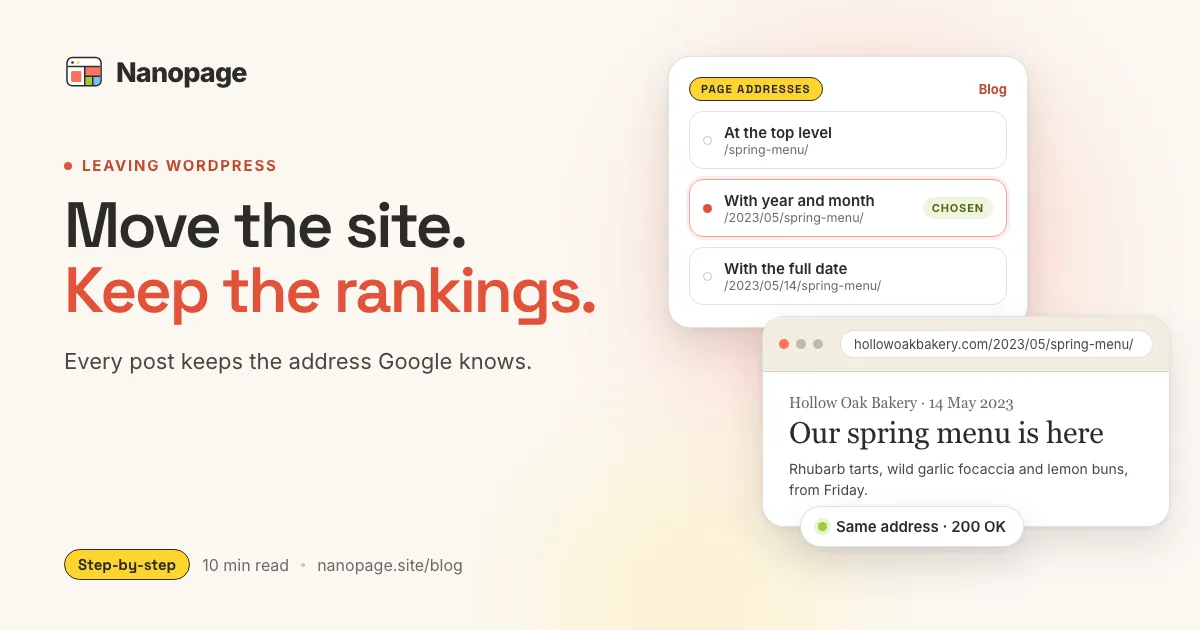
On Nanopage, each collection has Page addresses in its settings (open the collection in Manage content and choose Edit fields). Pick the shape your WordPress site used, and every entry is served at exactly the address it had before:
- WordPress "Post name" (
/spring-menu/): choose At the top level. - WordPress "Month and name" (
/2023/05/spring-menu/): choose With year and month. - WordPress "Day and name" (
/2023/05/14/spring-menu/): choose With the full date. - A custom structure such as
/blog/spring-menu/or/news/spring-menu.html: choose Custom and type the pattern, for example/blog/{slug}/.
When the pattern uses dates, set the time zone your WordPress site used. WordPress dates its addresses in local time, so a post published at 23:30 in Berlin belongs to that day in Berlin, not the next day in UTC.
Small differences are handled for you. A request without the trailing slash, with capital letters, or with the wrong month goes to the right post with a 301 redirect, which is the permanent redirect Google needs to pass a page's ranking on to its address.
Your pages
Top-level pages keep their addresses as they are. /about/, /contact/, and /services/ work on the new site as long as the new design has an About, Contact, and Services page with the same names. Ask for that when you build: "Keep the page addresses /about, /services, and /contact."
Pages nested under other pages are different. If your WordPress site has child pages such as /services/kitchen-renovation/ and /services/bathroom-renovation/, make them a collection: a Services collection with the page address /services/{slug}/. Each service becomes an entry at its old address, the collection's list page answers at /services/ and shows them all, and you get a form to add the next service without asking anyone.
Addresses that fit no pattern
Some posts were published before you changed your permalink setting, or have an address you edited by hand. Each entry can carry a list of old addresses. Visitors and Google who arrive at one are redirected with a 301 to the entry, and the redirect follows the entry even if you rename it later. If you change an entry's address yourself in the editor, the old one is kept as a redirect automatically.
What does not carry over
Be clear-eyed about what this does not cover, so nothing surprises you later:
- Plain permalinks (
/?p=123). Addresses that live in a query string cannot be matched. If your site still uses Plain, switch WordPress to "Post name" a few weeks before the move so Google learns the new addresses first. - Category, tag, author, and date archives (
/category/news/,/tag/recipes/,/author/anna/) and old feeds (/feed/). These usually bring very little search traffic. Check your Search Console export: if one of them is in your top 30, plan a page or collection for it. - Pages nested under pages that you do not turn into a collection.
For a typical small business site, this list costs nothing, because the traffic is on the homepage, the service pages, and the posts.
Step 4: Bring your posts across
There are three ways to move posts into a collection. All of them keep the address, the publish date, the text formatting, and the images.
Ask us. If you do not want to do this yourself, send us the address and the rough size of the site, and we will make you an offer to migrate it.
Let an AI agent do it. Connect Claude, ChatGPT, Cursor, or Codex to the Nanopage MCP server and ask: "Move the blog from my WordPress export into a Blog collection on my Nanopage site. Keep the slugs and dates, and use the Month and name address pattern." The agent sets the address pattern first, then sends the posts in batches.
Script it. Developers can use the import API: up to 100 entries per request, HTML or Markdown bodies, and images by URL. The details that make it safe for a migration:
- The slug is the identity. Sending a post whose slug already exists updates it instead of duplicating it. If something looks wrong after the first run, fix the script and run it again.
- Dates come along. The original publish date keeps your archive in order and keeps date-based addresses correct.
- Long slugs fit. Imported slugs can be up to 80 characters, so
/what-to-ask-before-hiring-a-kitchen-renovation-contractor/stays exactly as it is. - Images move too. Image fields and the images inside each post are downloaded into the site's library, so nothing still points at your old host after you cancel it.
- Formatting survives. Headings, lists, quotes, links, and images with captions come across as if they had been typed in the editor. Shortcodes from page builders and plugins do not, so check the posts that used them.
Step 5: Check the new site before anyone sees it
Your new site is already live at its preview address on npage.dev, while your domain still points at WordPress. Use that window.
Open your top 30 addresses on the new site. Take the Search Console export from step 1 and open each address on the preview. Each one should show the right page or post, or redirect to it. This is the most valuable 15 minutes of the whole move.
Read your top pages, not just the homepage. Make sure the service descriptions, prices, FAQs, and contact details that answered searches before are still there in full. A redesign should change how things look, not quietly drop the paragraphs Google ranked.
Check titles and descriptions. Open the SEO panel for the site and look at each page's title and description. If your WordPress SEO plugin had carefully written titles for your main pages, copy them over.
Look at the sitemap. Your new site publishes sitemap.xml on its own, listing every page and every published entry at its real address. You do not need a plugin for it.
Replace each plugin's job. Contact and quote forms are built in, with spam handling and email alerts. Visitor numbers are in the built-in analytics. A booking tool or newsletter signup from another service can be linked or embedded.
Test on a phone. Most of your visitors, and Google's crawler, see the mobile version first.
Step 6: Switch the domain without going dark
Your domain is not moving anywhere. It stays with the same registrar. You change one DNS record so it points at Nanopage instead of your WordPress host, and Nanopage issues the HTTPS certificate automatically. The domain guide shows the exact record for common registrars.
Three habits keep the switch invisible:
- Do it on a quiet day, not the morning of your busiest sale.
- Keep the WordPress hosting for two to four weeks. If you spot something missing, the old site is still there to copy from. Cancel only when you are sure.
- Keep the same domain, with or without
www, as before. Moving domains at the same time as platforms doubles the risk for no benefit.
Step 7: Watch Search Console for a few weeks
After the switch, Google recrawls your site over the next days and weeks.
- Submit the new sitemap. In Search Console, open Sitemaps and submit
yoursite.com/sitemap.xml. Remove the old WordPress sitemap if it is still listed. - Watch the Page indexing report. Addresses that return "Not found (404)" are links you missed. Add them as old addresses on the right entry, or tell us and we will help.
- Expect a little movement, not a cliff. Rankings often wobble for a couple of weeks while Google recrawls, then settle. A site that is faster and better on a phone than the one it replaced often settles higher. A steady decline after a month means something is still missing. Go back to your top 30 list.
What you leave behind, and what does not move
You stop maintaining:
- Plugin, theme, and WordPress core updates, and the security patches that come with them.
- A separate hosting plan, a backup plugin, a caching plugin, and an SEO plugin.
- A page builder you have to relearn every time you log in.
Updates become a sentence: "Change the Saturday hours to 9 to 2," or "Add the new team member with this photo." Routine entries such as a new post or event go straight into the collection's form. A Nanopage site starts at $19 per year with hosting, HTTPS, analytics, and forms included.
Keep WordPress, or another tool, for:
- Online stores with a checkout, cart, and inventory.
- Member logins, forums, and comment threads.
- Features that only exist because of one specific plugin.
If that is your site, Nanopage is the wrong destination. If your site is a business or organization telling people what it does, showing its work, publishing news, and taking enquiries, it is the right one.
The short version
Your rankings belong to your addresses and your content, not to WordPress. Keep both and you keep the rankings.
- Export your content and list your addresses, especially the 20 or 30 that bring visitors from Google.
- Move the pages with Improve my site and the posts into a collection.
- Give the collection your old permalink shape, and add old addresses for anything irregular.
- Check your top addresses on the preview before you switch.
- Point the domain, keep the old hosting for a few weeks, and watch Search Console.
Start with Improve my site. The first build and preview are free, and your WordPress site keeps running until you decide to switch.